 Chris Bruner
Pixlr is my go-to when I want to edit photos or do quick design work online. The best part? You don’t even have to install anything; it all runs right in your browser. Pretty convenient, right? It mixes the classic editing tools we all know with some really cool new AI features.
You can work with JPEG, PNG, WEBP, GIF, and even PSD files. That means you can crop, resize, retouch, or even play around with things like face swap, background removal, generative fill, and image upscaling. And if you’ve got a bunch of pictures to work on, Pixlr has a batch tool that lets you edit them all at once. No more wasting time doing the same thing over and over.
Pixlr Plans & Coupon Codes
Pixlr
6 plans · best save 44%
Premium - Month Plan
1000 credits for AI generations | Full access to Pixlr apps and assets, ad-free
Premium - Annual Plan ★ Best Deal
12000 credits for AI generations | Full access to Pixlr apps and assets, ad-free
Plus - Month Plan
80 credits for AI generations | Ad-free, unlimited saves
Plus - Annual Plan
960 credits for AI generations | Ad-free, unlimited saves
Ultra - Month Plan
5000 credits for AI generations | Full access to Pixlr apps and assets, ad-free
Ultra - Annual Plan
60000 credits for AI generations | Full access to Pixlr apps and assets, ad-free
Key Features and Screenshots

- AI Image Generator: converts text prompts into visuals within seconds while allowing style, lighting, composition, and aspect ratio adjustments.
- AI Face Swapper: swaps faces between photos or themed templates while automatically matching skin tone, lighting, and facial alignment.
- Background & Object Removal: detects subjects automatically and removes backgrounds, people, text, or clutter while preserving overall image quality.
- AI Generative Fill: lets you select any photo area and describe objects to add, generating content that blends naturally.
- Generative Expand: extends photos beyond original borders while filling new areas to maintain a balanced and natural scene.
- Advanced Photo Editing: provides quick and advanced tools for cropping, retouching, and applying filters for social graphics or marketing visuals.
- Collage & Grid Maker: builds organized layouts for social media, ads, or presentations using automatically generated grids and collage templates.
- Filters & Effects: applies visual effects including HDR, Bokeh, Dispersion, Glitch, Mirror, and Colorize to enhance images.
- Template & Animate: offers ready-made templates for social posts, posters, flyers, and product visuals that support text and image customization.
Pixlr Pros and Cons
Conclusion – Is Pixlr Worth It?
Using Pixlr has been a positive experience for me, and I think you guys might like it too. It’s an online AI photo editor, image generator, and design tool that lets me edit photos, remove backgrounds, make collages, and even design social posts right in my browser or phone. The free plan is a bit limiting, and sometimes the AI results aren’t perfect, but the paid versions feel totally worth it compared to pricey desktop software. If you’re looking for something powerful without dealing with a steep learning curve, Pixlr is definitely worth choosing.
Review by Laura Marano – tech writer and software reviewer at WinningPC
How to Use Pixlr (Step-by-Step Guide)
Step 1. Download
Open the Pixlr Website or download the Pixlr app on iOS/Android. No installation needed if you prefer the online version.
Step 2. Choose Your Editor: Pixlr Express, Pixlr Editor, Pixlr Designer, Remove BG, and Batch Editor.

Step 3. Upload Your Image or Start Fresh
Click “Open Image” to upload a photo, drag-and-drop a file, or start from a blank canvas/template.
Step 4. Apply Tools & AI Features:
- Use Crop, Resize, or Adjustments for basics.
- Try AI tools like Remove Background, Generative Fill, Face Swap, or Upscale to transform your photo in seconds.
- Add filters, overlays, or effects to match your creative style.

Step 5. Fine-Tune with Layers
For advanced edits, stack multiple layers (text, shapes, and images) and adjust them individually, just like in Photoshop.
Step 6. Save or Export Your Work
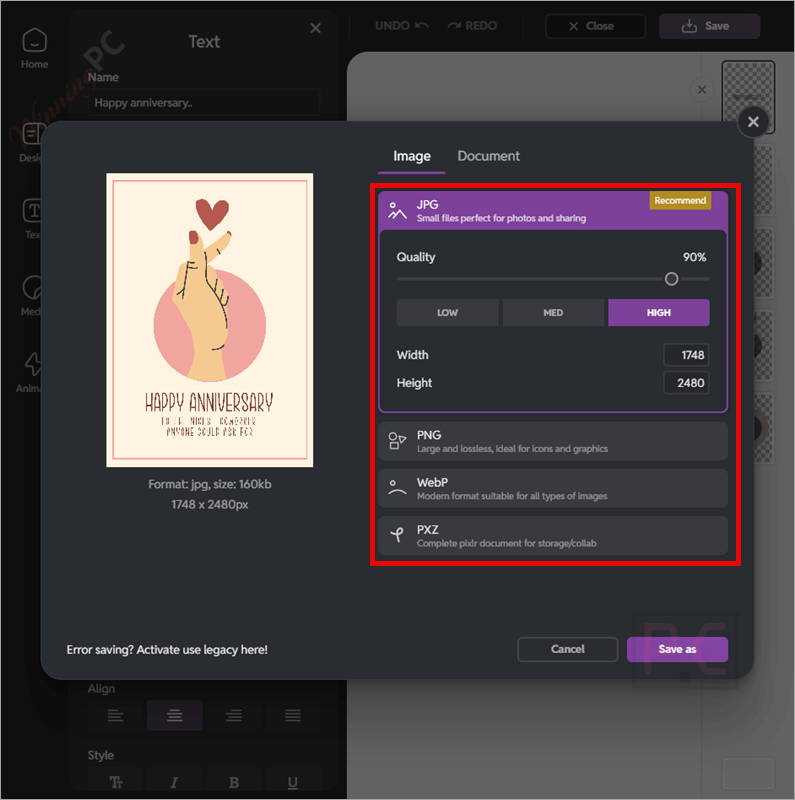
Click Save/Download to export your project. Choose JPEG, PNG, WEBP, PSD, or Pixlr’s PXZ format if you want to keep editing later.
Step 7. Share Anywhere
Use your final image for social media, blogs, ads, or print. Pixlr templates are especially handy for Instagram, YouTube, and Facebook posts.
Frequently Asked Questions
What file formats does Pixlr support?
It supports JPEG, PNG, WEBP, GIF, PSD, and its own PXZ layered format. This makes it easy to edit or export images for any use.
Does the software have AI features?
Yes! This tool offers AI background remover, AI object remover, AI image generator, AI generative fill/expand, AI face swap, and AI upscaler, among others.
Can the software replace Photoshop?
For many casual users and small businesses, yes. This tool has most of the core editing tools plus AI extras. Professionals who need very advanced features may still prefer Photoshop.
What can I do with Pixlr?
It gives you plenty of handy tools for photo editing. You can tweak brightness and contrast, add text or overlays, play with filters and effects, retouch portraits, or even put together fun collages. The layout is super easy to navigate, so whether you’re new or experienced, you’ll find everything within reach.
Technical Details
| Language Support | ~30 languages including English, Spanish, Chinese, Arabic, Korean, etc.; some tools are English-only |
| Money Back Guarantee | No refunds; 7-day trial available |
| Operating System | Web (browser), Desktop (Windows, Chromebook), Mobile (iOS & Android) |
| Shipping | Digital access only; no physical shipping |
| Subscription | Plus, Premium, Team; auto-renewable; cancel anytime; no refunds |
| Support Services | Email, tutorials, community (Facebook, Reddit, Discord) |