 Laura Marano
Why You Need Stellar Deduplicator for Outlook
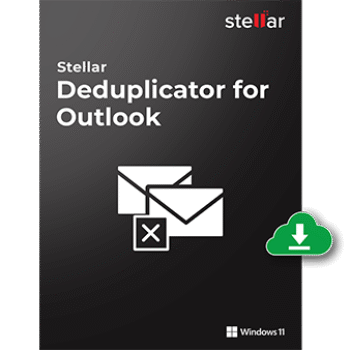
When Outlook is filled with duplicate emails, it consumes storage and slows everything down. That’s when I turn to Stellar Deduplicator for Outlook. It scans through my mailboxes, finds the duplicate copies, and deletes them. You can also select from various scanning options, such as sender name, recipient, subject, text, attachments, internet headers, or even the date. Once it shows you the duplicates, you get to decide what happens next. You can delete, move, copy, flag, mark as expired, or permanently remove them. The best part is that Stellar Deduplicator for Outlook works with Microsoft 365 as well as older Outlook versions, dating back to 2007. For me, it’s a simple way to keep Outlook clean, faster, and more secure, no matter how big the inbox gets
Stellar Deduplicator for Outlook Discount (100% Working)
Stellar Deduplicator for Outlook
10% coupon code: regular price: $20, discounted price: $18
Key Features and Screenshots
- Scans your Outlook mailboxes thoroughly, including the Inbox, Sent Items, Outbox, Deleted Items, and more, to identify and remove duplicate/multiple copies of emails.
- Move duplicates to another folder, copy them for reference, flag them, mark them as expired, or permanently delete them, giving full control over the cleanup process.
- Instead of checking one folder at a time, you can select multiple folders in one go to save time and ensure all your Outlook folders stay organized.
- Filter duplicate mails received/sent by time, such as last day, last week, last month, or even last year, to tidy up recent or older emails.
- Generate a report detailing all duplicates found and the actions taken after each scan, making it easy to review or maintain records of the cleanup.
- Once installed, Stellar Deduplicator for Outlook appears as an add-in directly within Outlook, allowing you to access it from your toolbar and run cleanups without leaving the app.
- Also checks various fields, including sender and recipient names, email addresses, subject, text content, attachment files, headers, and the date and time an email was sent to ensure accurate detection of true duplicates.
- Supports Microsoft 365, as well as older versions of Outlook, including 2021, 2019, 2016, 2013, 2010, and 2007, ensuring compatibility with almost any setup.
Stellar Deduplicator for Outlook Pros and Cons
Conclusion – Is Stellar Deduplicator for Outlook Worth It?
If you’re like me and hate when Outlook slows down because of endless duplicate emails, then Stellar Deduplicator for Outlook is definitely something to look at. I’ve seen how it scans through mailboxes and cleans up those extra copies, and it really makes a difference. Not only does it free up space in your PST files, but it also keeps Outlook running way smoother. The free trial only lets you preview what’s there, so you’ll need the paid version to actually remove the duplicates. But in my opinion, the price is small compared to the time and storage you save. For anyone who spends a lot of time in Outlook and just wants things to feel lighter and safer, this tool is really worth it.
Review by Laura Marano – tech writer and software reviewer at WinningPC
How to Use (Step-by-Step Guide)
Step 1. Select an Outlook Profile
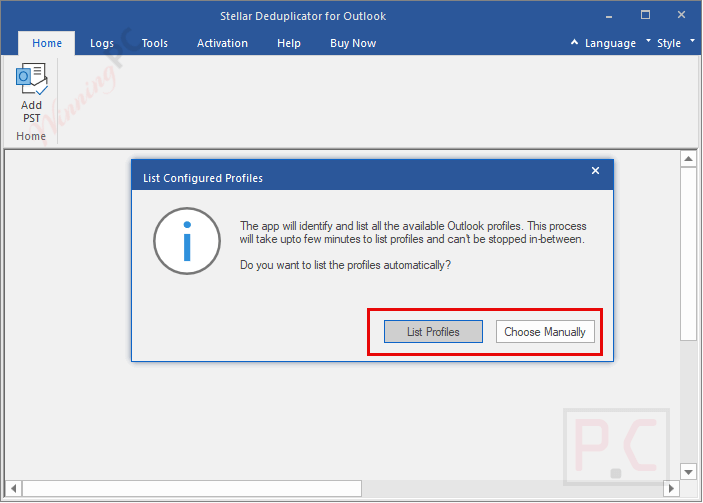
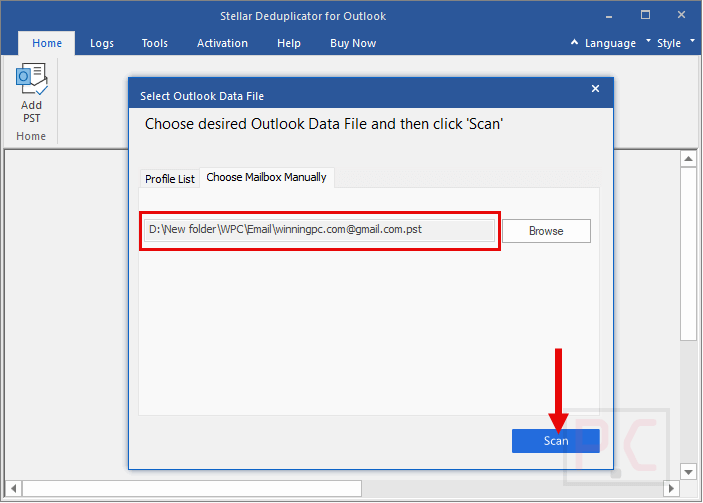
Stellar Deduplicator for Outlook will prompt you to choose the Outlook profile you want to clean. You can either “List Profiles” or “Choose Manually” and browse and select a specific PST file on your system.
Step 2. Pick Mailbox Folders
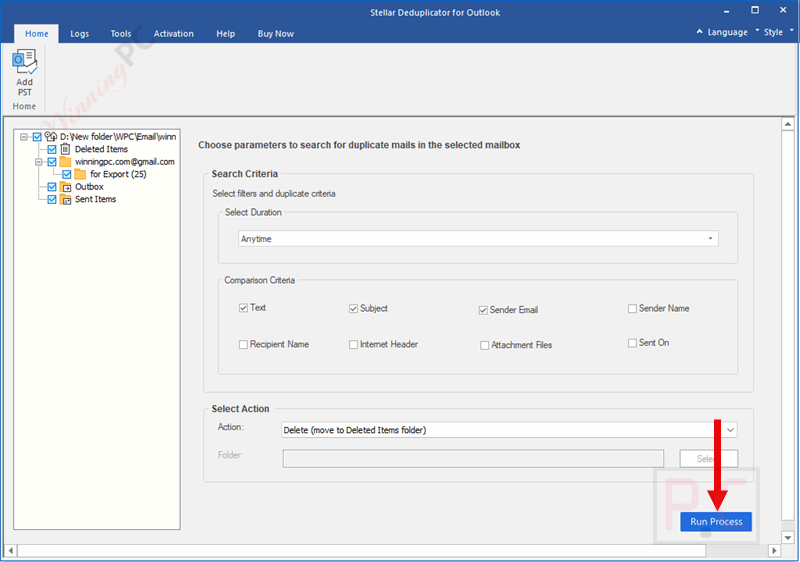
Next, select the folders where you want to search for duplicates. You can check one, multiple, or all folders (Inbox, Sent Items, Deleted Items, etc.).
Step 3. Apply Time Range (Optional)
If you only want to scan emails received or sent within a certain period (like the last 30 days), select the desired time filter.
Step 4. Set Matching Criteria
Define how duplicates should be identified. Options include Text, Subject, Sender Email, Sender Name, Recipient Name, Internet Header, Attachment Files, and Sent On. You can combine multiple criteria for more accurate results.
Step 5. Review and Choose Action
Once the scan completes, the tool will list detected duplicates. You can then decide what to do:
- Delete (move to Deleted Items)
- Delete Permanently
- Move to another folder
- Copy to another folder
- Mark as Expired
- Mark with Flag
Step 6. Generate and Save Report
After cleanup, a log report is created with details of the duplicates found and actions taken. Save it for future reference if needed.
Frequently Asked Questions
Does the software delete emails automatically?
No. After duplicates are identified, you can decide what to do with them: delete, move, copy, flag, or mark them as expired.
Can I remove duplicates from more than one folder at a time?
Yes. You can select multiple folders, and the software will process all of them in a single scan.
How does Stellar Deduplicator for Outlook detect duplicates?
It uses several matching criteria, such as subject, sender, recipient, attachments, headers, text content, and date/time of sending.
Does it generate a report after cleanup?
Absolutely. A detailed log report is created for each scan, so you can review what was found and what actions were taken.
Will removing duplicates speed up Outlook?
Yes. Fewer duplicates mean smaller PST files and faster mailbox performance.
Can I get a discount when purchasing?
Yes! WinningPC provides the coupon code STE***R10, which gives you up to 10% off your purchase.
Why Choose WinningPC for Software Discounts?
At WinningPC, we are committed to providing 100% valid and verified coupon codes, so you can always shop with confidence.
- If you come across an invalid code or a better offer, let us know.
- Our team updates all discount information regularly to ensure accuracy.
- Official Authorization: We only share authentic discounts from trusted software developers.
- No Fake Discounts: Unlike some sites, we never use misleading deals. The final price you see is the true discounted price.
- Secure Purchases: All transactions are processed on the official vendor’s website, ensuring authenticity and data protection.
- Extra Support: If you face order or vendor issues, contact us. We’ll liaise with the vendor to help resolve your problem quickly.