 Cathryn Lee

💡 Print Conductor is 34% off right now for the 5-PC license — $495 instead of $745. The discount applies through fCoder Software’s store, while the 1-PC license stays at $149. ✅Verified Sep 2026 by Cathryn for Windows batch printing.
Print Conductor is Windows batch printing software from fCoder Software for people who handle large document queues. It can process an unlimited number of files from one list, which makes it useful for offices, engineering teams, legal/accounting departments, healthcare, education, banking, and government workflows where predictable printing matters.
Print Conductor
2 plans · best save 34%
1 PC
1 Windows PC | For solo users who need batch printing on one machine
5 PCs ★ Best Deal
5 Windows PCs | For small teams, departments, and shared office printing workflows
Table of Contents
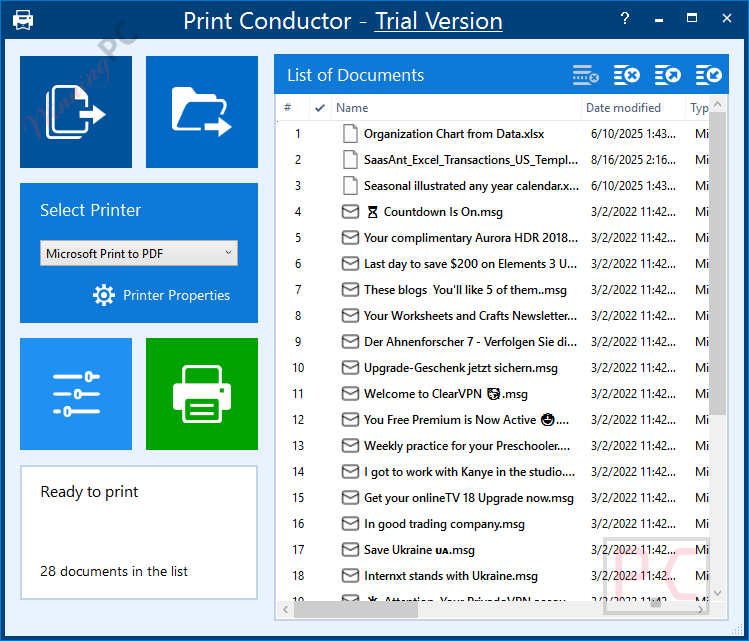
Key Features and Screenshots
Key Features:
- Batch print an unlimited number of files sequentially from one document list.
- Supports common document and image formats including PDF, DOCX, TXT, JPG, PNG, TIFF, and many more.
- Works with local printers, network printers, virtual printers, plotters, barcode printers, and other Windows-recognized printing devices.
- Offers common and advanced settings, item-level settings, print-engine selection, and file extension aliases.
- Includes cover pages, print estimation reports, detailed reports, report pages, collation modes, single print job mode, multiple pages per sheet, and customizable watermarks.
Pros & Cons:
More screenshots:
How to Use (Step-by-Step Guide)
Step 1. Install and launch
Download Print Conductor from the official link on the giveaway or product page, then install and open the program on your Windows PC.
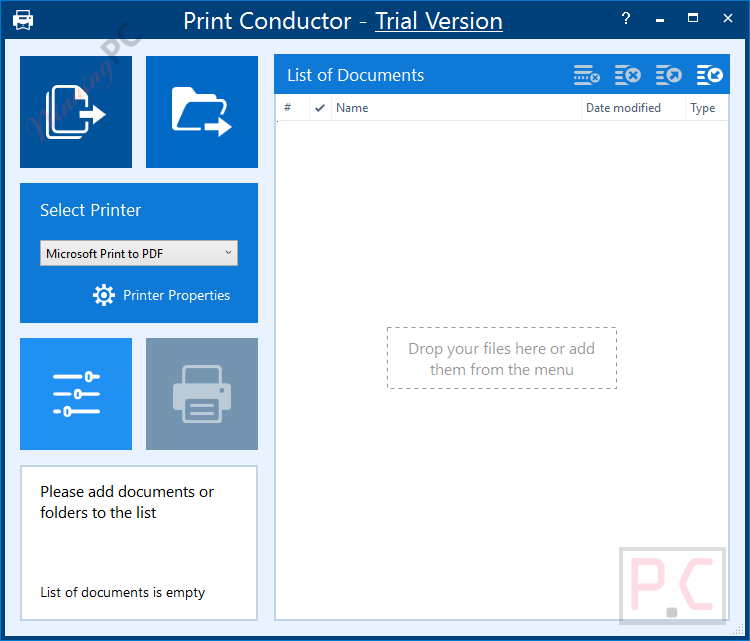
Step 2. Add files to the list
Drag and drop files into the main window, or use Add Files / Add Folder to load documents. You can also add files from ZIP, RAR, or 7-Zip archives.
Step 3. Arrange and sort documents
Reorder files manually or sort them by name, type, or other criteria to control the print sequence.
Step 4. Select a printer
Choose a local, network, or virtual printer from the printer list.
Step 5. Adjust print settings
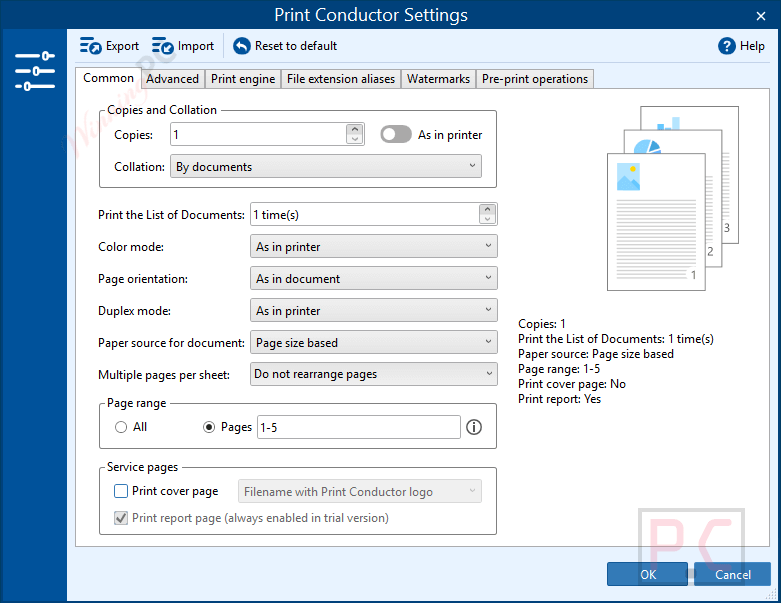
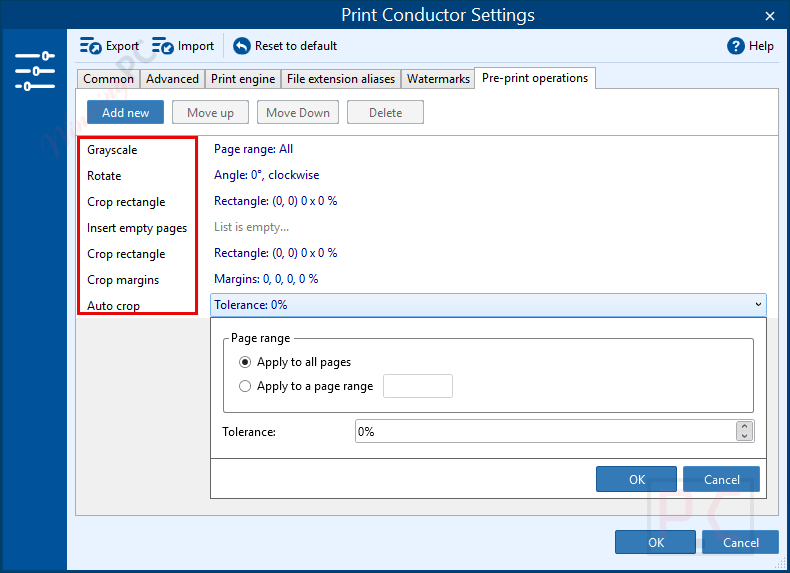
Set global options such as paper size, orientation, duplex mode, color or grayscale. You can also customize settings for individual files if needed.
Step 6. Start printing
Click Start Printing and let Print Conductor process all files automatically without opening them one by one.
Step 7. Review the results
Once finished, check the print report and confirm that all documents were printed successfully.
Frequently Asked Questions
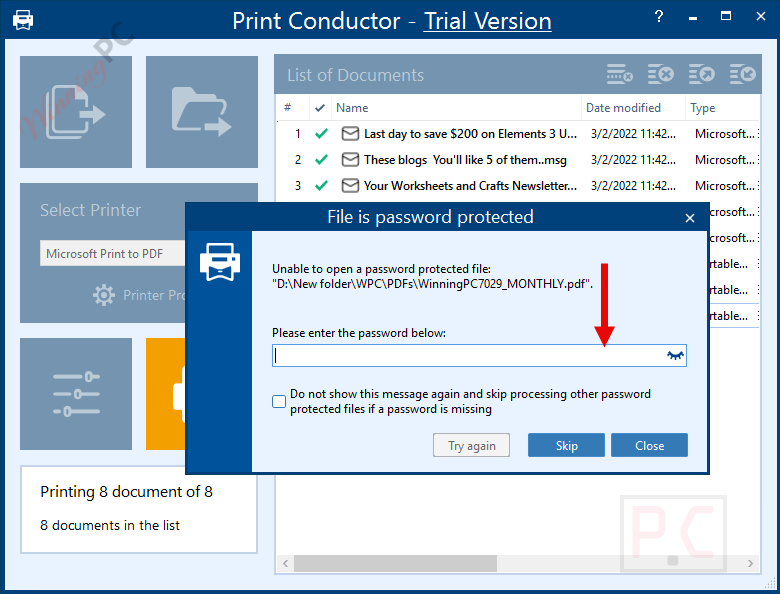
Can it print password-protected PDFs?
Yes, as long as you provide the correct password.
Can I add cover pages between printed documents?
Yes, cover pages can be added to separate printed documents clearly.
Can I estimate paper usage before printing?
Yes, Print Conductor can estimate how many sheets will be required.
Is it possible to save file lists for repeated printing?
Yes, you can save and reuse document lists for recurring print jobs.
Does Print Conductor support virtual printers like PDF printers?
Yes, it works with virtual printers and can even merge output into a single PDF.
Is there a discount available for Print Conductor?
Yes! WinningPC provides a coupon that helps you save 34% on Print Conductor. Be sure to use the coupon before purchasing.
Technical Details
| Language Support | English, Français, Italian, Spanish, Swedish, and more… |
| Money Back Guarantee | 30-Day |
| Operating System | Microsoft Windows 11/10/8/7 (32-bit or 64-bit system) Microsoft Windows Server 2003/2008/2012/2016/2019/2022/2025 or newer version |
| Shipping | Register code will be sent to your email in minutes |
| Subscription | Lifetime |
| Support Services | Tickets |