
 Chris Bruner
BulkFolderLocker is a fast and lightweight tool for Windows that helps you lock multiple folders at once in just a few seconds. You can keep your private data secure and away from unwanted access. Once your folders are locked, they become fully protected and no one can open, read, or delete their contents from File Explorer, the command line, or other applications.
BulkFolderLocker Plans & Coupon Code (100% Working)
BulkFolderLocker PRO
33% off coupon code: regular price $29.95, discounted price $19.95
Giveaway: BulkFolderLocker License Code for Free
- Product name: BulkFolderLocker 1.1
- Website: https://autoclose.net/bulkfolderlocker.html
- License type: lifetime
- Platform: Windows
- Giveaway page: n/a
- License code – last updated: Dec 04, 2025
Click here
Download: BulkFolderLocker_Pro_1.1_Giveaway.zip
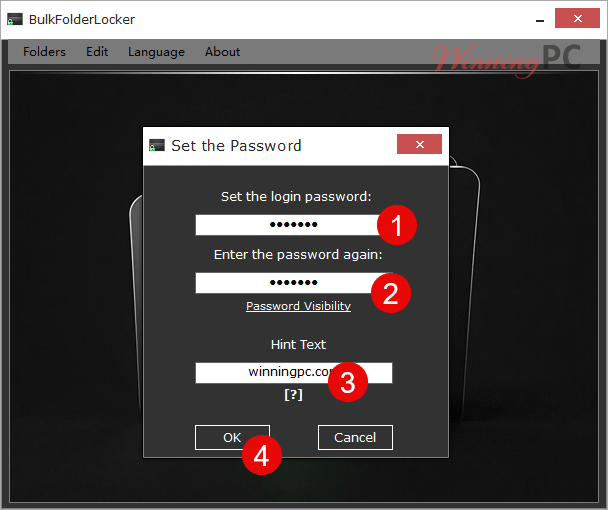
Install the software on your computer and open it. You need to set the master password and hint:
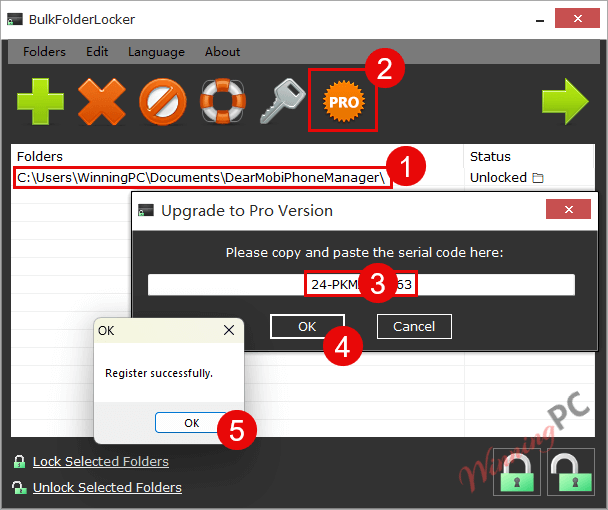
Add a folder, and you can see the button to upgrade this software to the PRO version. Just paste the above BulkFolderLocker license code and activate it:
BulkFolderLocker screenshot
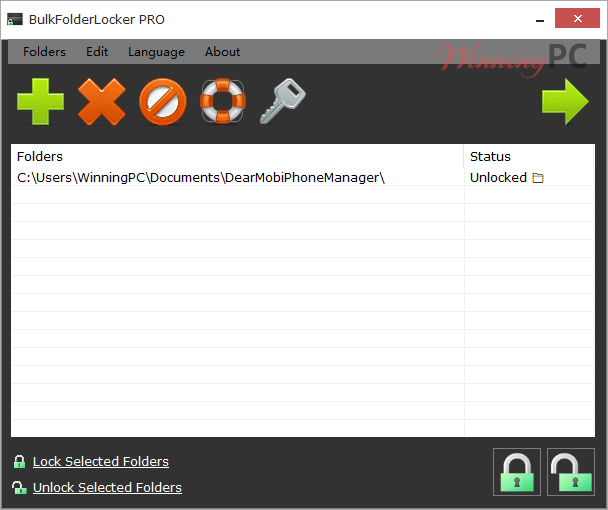
Main Features
- Lock or unlock multiple folders in 3 seconds.
- Block access to files from File Explorer, Command Line, or any program.
- Prevent folders from being deleted or moved.
- One-click operation with an easy-to-use interface.
- 100% local security, no internet needed.
- Lightweight and portable.
How to Use
Step 1. Open BulkFolderLocker and set a login password with a hint text the first time you use it.
Step 2. Click Add or drag folders into the window to add them to the list.
Step 3. Click Lock All Folders to secure your folders within a few seconds.
Step 4. To unlock, open the program, enter your password, and click Unlock All Folders.
Step 5. Use the Reset Password button if you ever need to change your login password.
Frequently Asked Questions
What is BulkFolderLocker?
It is a simple Windows tool that lets you lock multiple folders at once.
Can I lock folders on external or network drives?
No, BulkFolderLocker only works with local folders stored on your PC.
What happens when a folder is locked?
When locked, the folder cannot be opened, viewed, copied, or deleted from File Explorer, Command Line, or any other program.
What if I forget my password?
You can use the password hint you set up during installation or reset your password with the Reset Password option.
Will my locked folders still appear in File Explorer?
Yes, but they cannot be opened, modified, or deleted while locked.
Can someone bypass the lock using third-party tools?
No, once locked, the folders are fully restricted from access or manipulation by any program.
Does the program leave any trace after uninstalling?
No, all locked folders remain locked until you unlock them; uninstalling the app won’t unlock them automatically.
Where can I get a discount for BulkFolderLocker?
You can get up to 33% off when purchasing through WinningPC’s exclusive promo. Visit WinningPC to grab the deal and save more today!
Why Choose WinningPC
- Why Trust? We are committed to providing 100% valid and verified coupon codes, so you can always shop with confidence.
- Found an Invalid Coupon or a Better Deal? If you encounter an invalid code or a better offer, please let us know. Our team updates all discount information regularly to ensure accuracy.
- Official Authorization: We only share authentic discounts from trusted software developers.
- No Fake Discounts: Unlike some sites, we never use misleading deals. The final price you see is the true discounted price.
- Secure Purchases: All transactions are processed on the official vendor’s website, ensuring authenticity and data protection.
- Extra Support: If you face order or vendor issues, contact us. We’ll liaise with the vendor to help resolve your problem quickly.
Technical Details
| Language Support | English, French, German, Greek, Italian, Spanish, Portuguese, Polish, Chinese, Korean, Danish, Dutch, Turkish, Arabic, Czech, Finnish, Hungarian. |
| Money Back Guarantee | 30-Day |
| Operating System | Windows 7 / Windows 8 / Windows 10 / Windows 11 or later & Server (64/32 bit) |
| Shipping | Register code will be sent to your email in minutes |
| Subscription | Lifetime |
| Support Services | Tickets |


Was ein Müll..
From the description of the way this works it does NOT encrypt the contents of the folder. Therefore using a deep scan of a file recovery program will reveal the files that are supposed to be locked away… just tested this it “works” by editing the ACL of the folder and adding a Deny Special Permissions to the Everyone Group. It is trivial to remove this “protection” by simply right clicking on the folder selecting Security tab and selecting Everyone entry and hit Edit button and press remove button and the protection IS REMOVED with no password, another “feature” of this protection is if the folder is open in another explorer window or program it remains accessible whether you lock it or unlock it with this toy… open the drive in linux and even with the deny special permissions enabled you will still be able to access it freely as linux ntfs driver does not have the ability to honour ACLs… this is just a toy if there is something you need to keep secret from prying eyes DON’T PUT IT ON A COMPUTER OF ANY KIND! Don’t expect it to function on a file system such as FAT32 or exFAT. I can’t see the benefit of registering this… could not find a reason to go PRO on their website either!
Oh giveaway license does not activate PRO in the portable edition… which is not truly portable as the password and other settings are stored on the host PC not in the portable programs location. It is in fact stored in the users AppData folder as the file infobflp.ini with the password stored in PLAIN TEXT!!!!!
That’s why we provided the giveaway installer.
I meant users AppData\roaming\ folder