The current Qustodio coupon is RE**Y30, giving 30% off — that drops the price from $59.95 to $41.96. ✅ Verified Oct 2026 by Cathryn, with a 30-day money-back guarantee. Click “Copy” below, then paste the code at checkout on Qustodio’s site.
Before, my children usually spent many hours a day on social networks such as YouTube, Facebook, and TikTok, and they didn’t concentrate on learning, housework, or playing sports. But when I use Qustodio, a professional parental control and digital well-being app, I can monitor, manage, and protect my children’s online activity across devices such as smartphones, tablets, and computers. With its help, I can schedule daily or weekly limits for device or app usage, block specific apps, or set app-specific usage hours.
Qustodio also helps me control their activity online by showing me how much time is spent on different apps, notifications received, and web history. It also has the ability to track calls and SMS on Android and iOS, allowing me to see my child’s conversations and messages, see what they’re writing, and block calls from and to specific contacts.

Table of Contents
Key Features and Screenshots
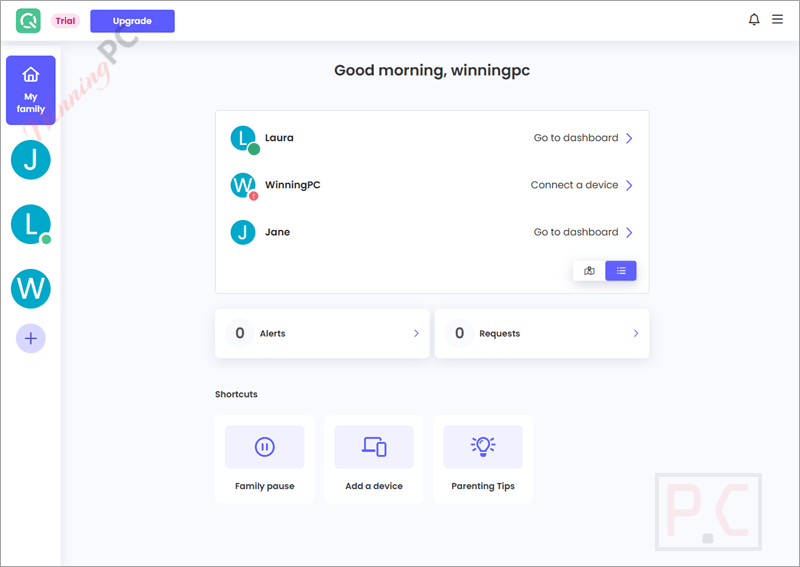
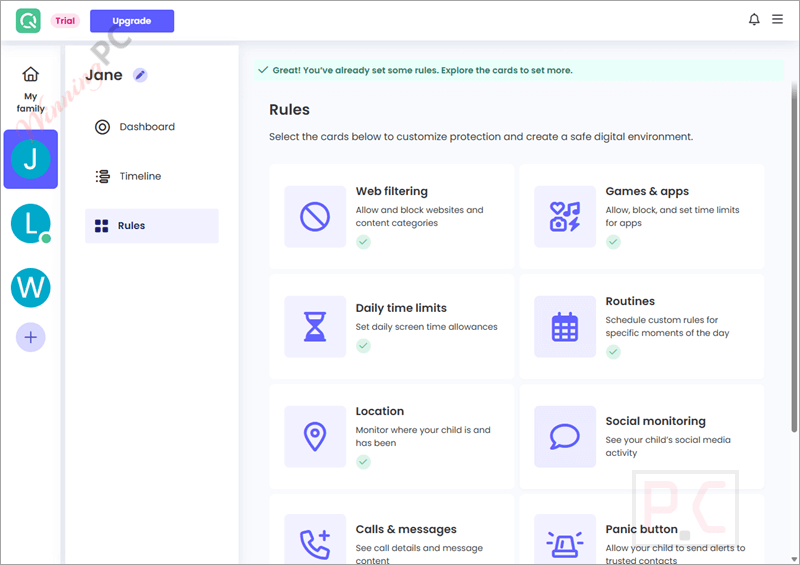
- Filter content & apps: Block inappropriate apps, games, and websites to allow safe browsing of child-friendly content.
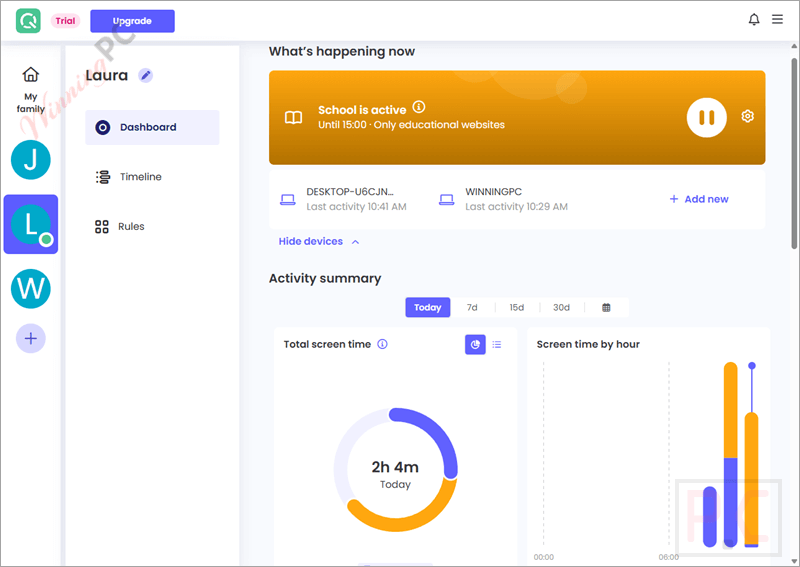
- Monitor activity: Monitor real-time digital activity, including browsing history, YouTube views, social media use, and screen time.
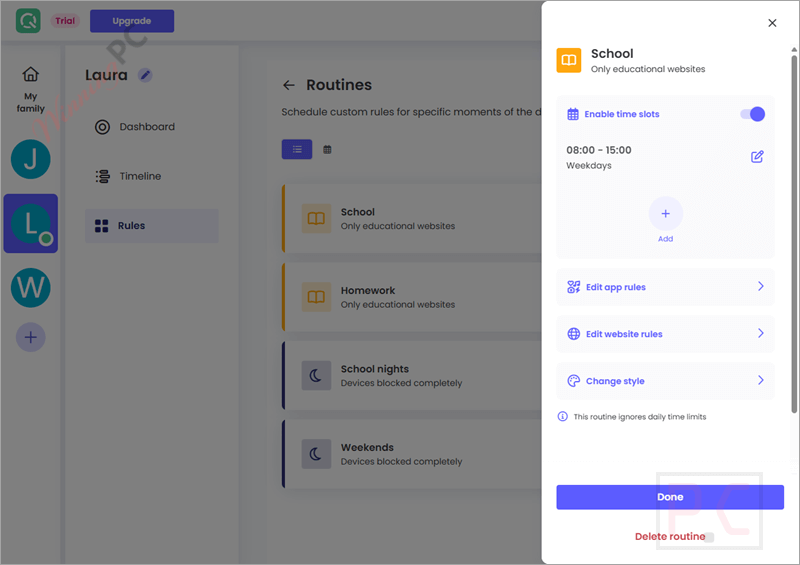
- Set time limits & routines: Set time limits and custom routines such as study time, bedtime, or other moments to balance screen time and encourage healthy sleep patterns.
- Locate family: Track your child’s real-time location (school and home) and get alerts when they enter/leave specific zones that you set.
- Calls & SMS Monitoring: Track phone calls and SMS messages; see who your child is talking to and what they’re texting for added peace of mind (iOS requires PC).
- Alerts & Notifications: Receive daily and weekly activity reports via email, and receive AI-powered alerts for concerning searches or conversations.
- YouTube Monitoring: Check what videos your child watches on YouTube, including in-app activity and time spent.
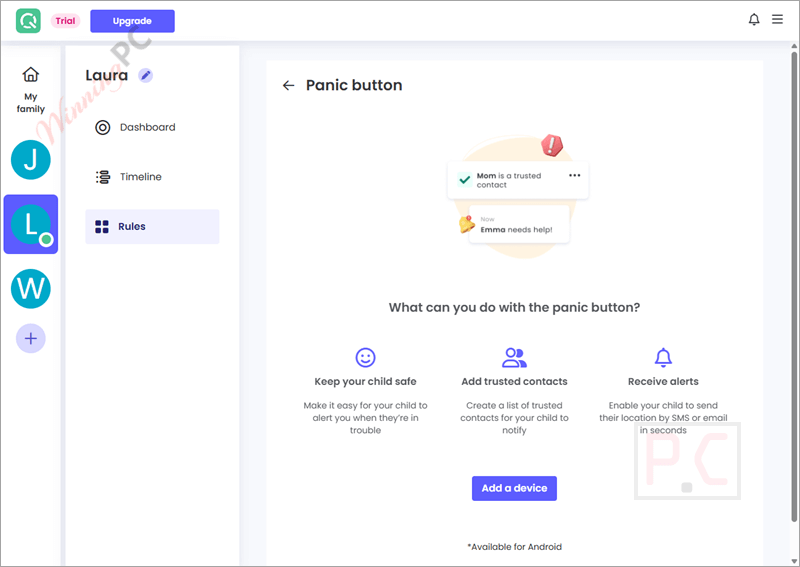
- Panic Button (SOS Feature) (Android only): This button allows kids to send SOS alerts in emergencies with location details to trusted contacts with one tap.
- Multi-Device Protection: Protects all devices across different platforms under one parental account, from phones to laptops.
- Cross-Platform Dashboard: Manage all settings, view reports, and make changes from an intuitive web or mobile dashboard.
More screenshots
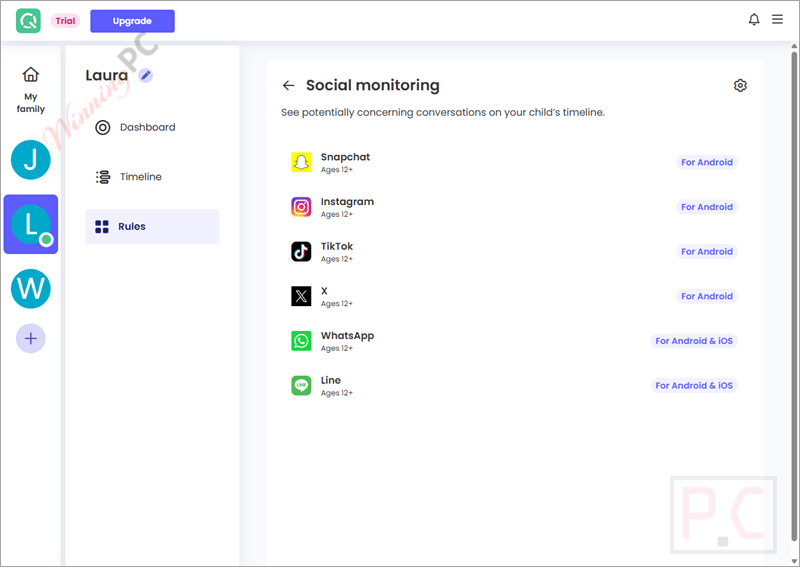
Social monitoring
Panic button
How to Use
Step 1. Create Your Qustodio Account
Go to the official site, then sign up with your email address.
Step 2. Set Up Parent Dashboard
After logging in, you’ll land on the parent dashboard. Add a profile for each child (name, age, etc.). Customize default rules based on age: Qustodio offers preset filters per age group.
Step 3. Install Qustodio on the Child’s Device
Install the app on the device you want to monitor (Windows, Mac, Android, or iOS). Log in with your Qustodio account and choose “This device belongs to my child.” Assign the device to the correct child profile.
Step 4. Grant Necessary Permissions
– On Android/iOS: Grant access to location, usage data, notifications, and accessibility services.
– On Windows/Mac: Allow full access during installation so Qustodio can track web and app usage properly.
Step 5. Configure Monitoring & Rules
From the parent dashboard (web or mobile), select your child’s profile. Set:
– Daily screen time limits
– Bedtime schedules
– Blocked apps and games
– Website filtering categories
– Location tracking & geofencing zones
Step 6. Monitor Activity & Receive Reports
Use the dashboard to check: Apps used and for how long. Websites visited or blocked. YouTube video activity. Location history. SOS alerts (Android). Receive daily or weekly email summaries of your child’s digital activity.
Frequently Asked Questions
How does the web filtering feature work?
Qustodio filters inappropriate websites based on predefined categories. You can also manually allow or block specific websites.
Can Qustodio monitor social media activity?
It does not access private messages but can track the time spent on apps like Facebook, Instagram, TikTok, and YouTube.
Can I read my child’s texts and see who they’re calling?
Text and call monitoring is only available on Android devices. iOS restricts this functionality.
Will my child know Qustodio is installed?
Yes, it is visible on the child’s device and cannot be hidden. This is to ensure ethical monitoring and open communication.
Can I temporarily pause internet access on my child’s device?
Yes, Qustodio lets you block internet access instantly through the dashboard for break time or discipline purposes.
How do I get a discount on Qustodio Premium?
You can save 30% on any Qustodio plan by using the WinningPC coupon code: RE**Y30 at checkout.
Why Choose WinningPC
- Why Trust? We are committed to providing 100% valid and verified coupon codes, so you can always shop with confidence.
- Found an Invalid Coupon or a Better Deal? If you encounter an invalid code or a better offer, please let us know. Our team updates all discount information regularly to ensure accuracy.
- Official Authorization: We only share authentic discounts from trusted software developers.
- No Fake Discounts: Unlike some sites, we never use misleading deals. The final price you see is the true discounted price.
- Secure Purchases: All transactions are processed on the official vendor’s website, ensuring authenticity and data protection.
- Extra Support: If you face order or vendor issues, contact us. We’ll liaise with the vendor to help resolve your problem quickly.
Technical Details
| Language Support | English, Français, Italian, Spanish, Swedish, and more… |
| Money Back Guarantee | 30-Day |
| Operating System | Windows, Mac, Chromebook, Android, iPhone/iPad, Kindle |
| Shipping | Register code will be sent to your email in minutes |
| Subscription | 1-Year |
| Support Services |