 Chris Bruner
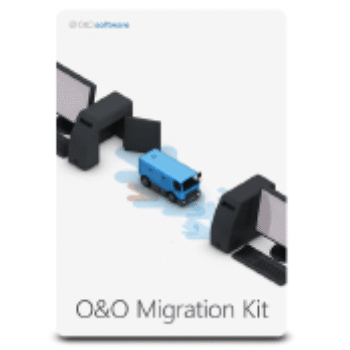
I’m planning to switch from Windows 10 to Windows 11, and I’ve decided to use The Migration Kit for Windows 11 to help with the process because it gives me a streamlined path and reduces manual steps. As you may know, the Migration Kit includes several components in one bundle: O&O DiskImage, Laplink PCmover, and O&O SafeErase. With its help, I can easily create a full image backup of my current system to restore in case anything goes wrong. It also helps me transfer files, applications, settings, and user profiles from my old PC to the new one. Furthermore, if you plan to sell or donate your old computer, the Migration Kit for Windows 11 can securely erase all your data after migration.
The Migration Kit for Windows 11
2 plans · best save 20%
Key Features and Screenshots
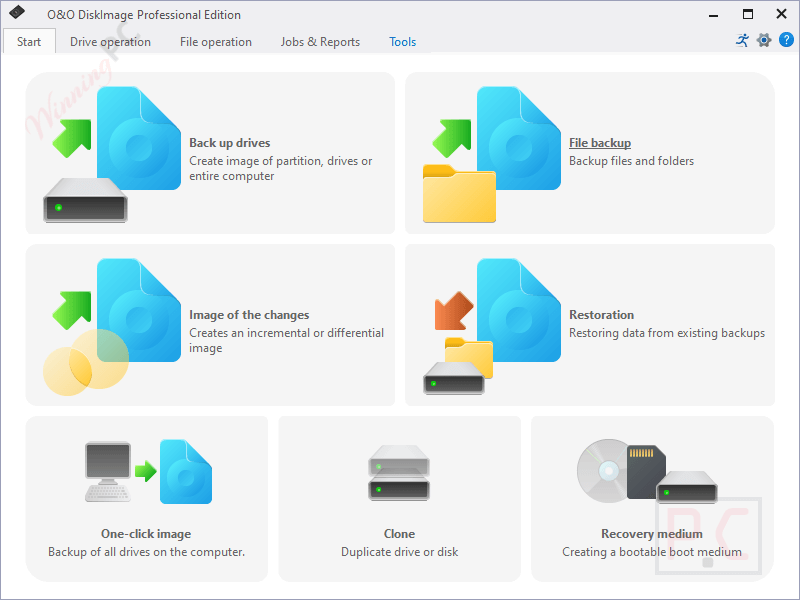
- Includes three useful tools: O&O DiskImage, Laplink PCmover, and O&O SafeErase, covering backup, transfer, and secure data deletion in one bundle.
- Easily create a complete image of your current system to restore in case of errors or failures during the Windows 11 migration.
- Move your applications, files, user profiles, and settings from your old PC to a new Windows 11 machine with ease, no need to reinstall programs manually.
- Permanently deletes sensitive data from your old PC after migration to ensure the personal files can’t be recovered when selling, donating, or recycling the device.
- User-friendly interface guides you through each step, making the migration smooth even for non-technical users.
- Works for in-place upgrades on the same PC or full migrations to a completely new Windows 11 device.
- Transfers many software licenses and preferences without requiring reactivation (depending on app compatibility).
- Protects your data with secure deletion standards and safe migration methods.
How to Use (Step-by-Step Guide)
Step 1. Install The Migration Kit for Windows 11
Download and install all three tools included in the kit: O&O DiskImage, Laplink PCmover, and O&O SafeErase on your computer.
Step 2. Back Up Your Current System
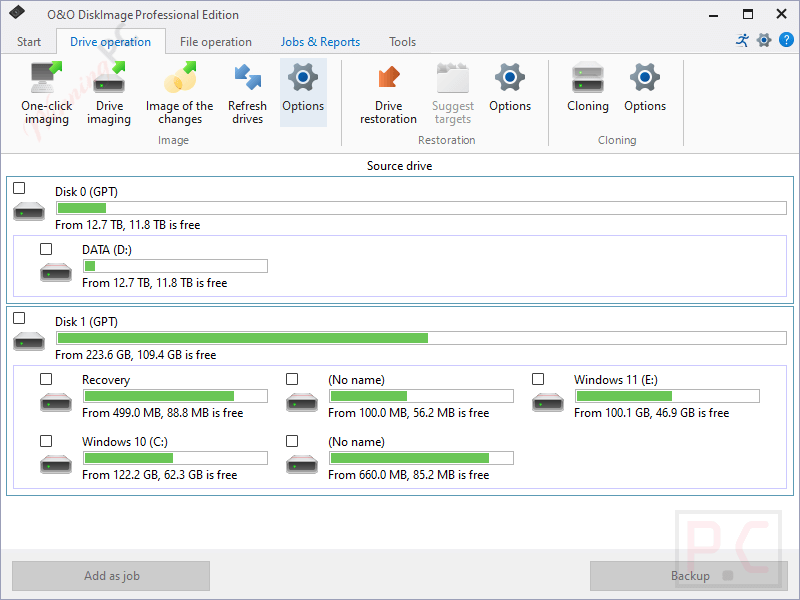
You should launch O&O DiskImage and then choose the option to create a full system image. Select your source drive and select a destination (external drive or second partition). Now, let’s start the backup and wait until it’s completed.
Step 3. Prepare Your New PC with Windows 11
Make sure your new PC has Windows 11 installed and activated. Connect both PCs via network or use a Laplink transfer cable (if available).
Step 4. Transfer Data, Apps, and Settings
On both PCs, launch Laplink PCmover, then choose “PC to PC Transfer” and follow the on-screen wizard. Select what you want to transfer: files, applications, user profiles, and settings. Then, start the migration and wait for the process to complete.

Step 5. Wipe Data from Old PC (Optional)
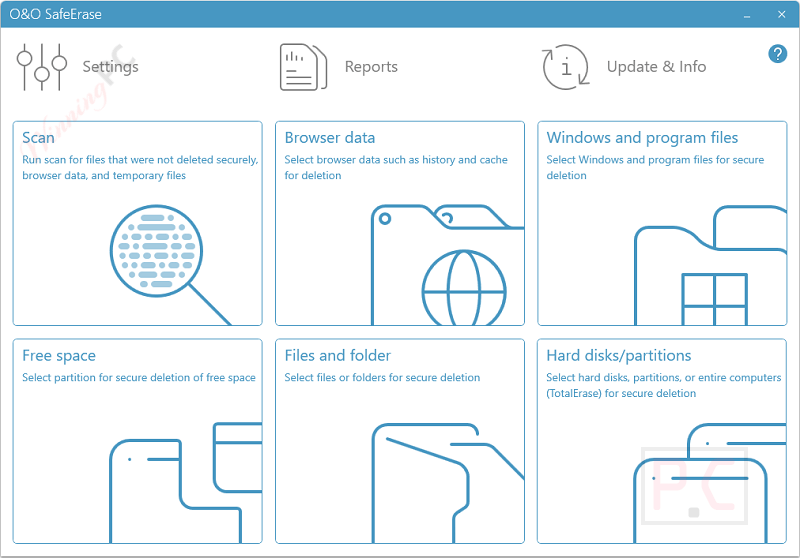
Launch O&O SafeErase, choose secure deletion options (entire drive or specific files), then confirm and let it wipe the data securely if you’re planning to sell, donate, or recycle your old computer.
Step 6. Check Everything on the New PC
Open, then check transferred files and apps to make sure key programs are working. Restore your backup from DiskImage if something didn’t transfer properly.
Frequently Asked Questions
What tools are included in The Migration Kit for Windows 11?
The kit includes three powerful tools:
– O&O DiskImage for full system backup.
– Laplink PCmover for transferring files, apps, and settings.
– O&O SafeErase for securely deleting data after migration.
Do I need technical skills to use this software?
Not at all. The Migration Kit for Windows 11 provides a guided, user-friendly process suitable for both beginners and advanced users.
How long does the migration process take?
The time depends on how much data and how many programs you’re transferring. Full system backups and transfers may take a few hours.
Is internet access required to use The Migration Kit for Windows 11?
The Internet is needed for activation and some parts of the transfer process, but not for full usage of backup and erasure tools.
Can I use this to move from an old hard drive to an SSD?
Yes, the migration kit supports transfers between drives, including upgrades from HDD to SSD.
How can I save money when buying The Migration Kit for Windows 11?
Use the WinningPC coupon code 9G6***K-SCJ to get 20% off your purchase while making your payment.
Why Choose WinningPC
- Why Trust? We are committed to providing 100% valid and verified coupon codes, so you can always shop with confidence.
- Found an Invalid Coupon or a Better Deal? If you encounter an invalid code or a better offer, please let us know. Our team updates all discount information regularly to ensure accuracy.
- Official Authorization: We only share authentic discounts from trusted software developers.
- No Fake Discounts: Unlike some sites, we never use misleading deals. The final price you see is the true discounted price.
- Secure Purchases: All transactions are processed on the official vendor’s website, ensuring authenticity and data protection.
- Extra Support: If you face order or vendor issues, contact us. We’ll liaise with the vendor to help resolve your problem quickly.
Technical Details
| Language Support | English, German |
| Money Back Guarantee | 30-Day |
| Operating System | Windows 11, 10, 64-bit versions |
| Shipping | Register code will be sent to your email in minutes |
| Subscription | Lifetime |
| Support Services | Email, Forums, Phone |