
 WinningPC

What is a Windows Restore Point?
A Windows Restore Point is a feature in Microsoft Windows that allows you to roll back your computer’s system files, registry keys, installed programs, and even system settings to a previous state. This can be particularly useful if you encounter system problems after installing new software, drivers, or updates that may cause instability or other issues.
Here’s a bit more about how it works and its benefits:
- System Snapshot: When a restore point is created, Windows takes a snapshot of your current system configuration, including system files, program files, and system settings. This snapshot allows the operating system to revert to this previous state.
- Trigger Points: The user can create Restore points manually at any time or automatically by Windows during key events (such as before software or update installation).
- Storage: Restore points do not back up personal data files such as documents, emails, or photos. Instead, they focus on system files and settings.
How to Create a Daily Windows Restore Point?
To create a Windows restore point automatically every day, you can use the Task Scheduler in Windows to set up a daily task that triggers the creation of a system restore point. Here’s a step-by-step guide on how to set this up:
Step 1: Open Task Scheduler
Press Win + R to open the Run dialog.
Type taskschd.msc and press Enter to open the Task Scheduler.
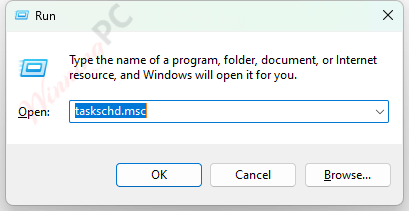
Step 2: Create a New Task
In the Task Scheduler, go to the Action menu and select Create Task.

Step 3: General Settings
Name the task something descriptive, such as “Daily Restore Point.”
Choose “Run whether user is logged on or not” (you might need admin privileges for this).
Check “Run with highest privileges” to ensure the task can create restore points.

Step 4: Triggers
– Go to the Triggers tab and click New.
– Set the task to begin On a schedule.
– Choose Daily and set the time you want the restore point to be created each day.
Click OK to save the trigger settings.
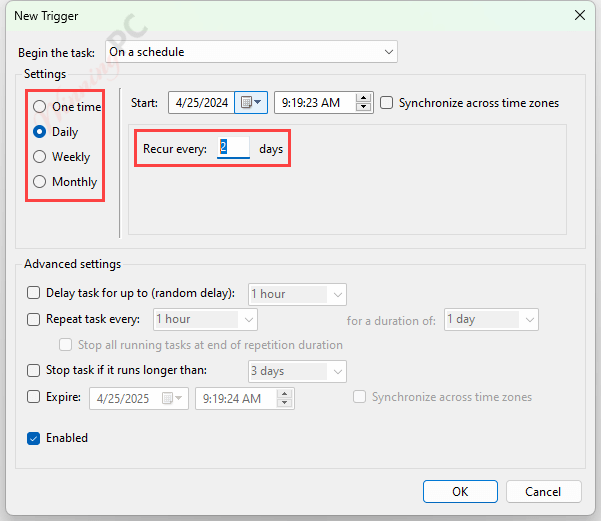
Step 5: Actions
– Go to the Actions tab and click New.
– Set Action to “Start a program.”
– In the Program/script box, type powershell.exe.
– In the Add arguments (optional) box, enter the following script:
-ExecutionPolicy Bypass -Command "Checkpoint-Computer -Description 'Daily Restore Point' -RestorePointType 'MODIFY_SETTINGS'"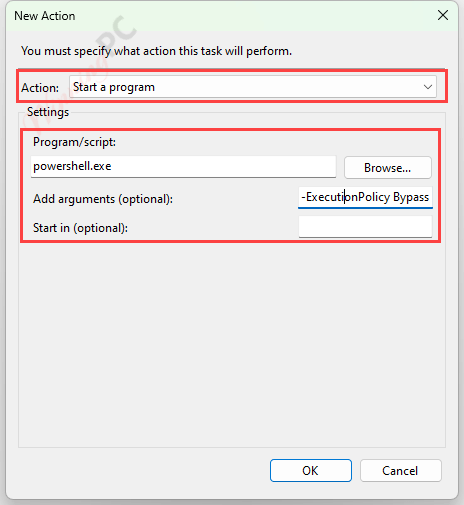
Click OK to save the action settings. This PowerShell command creates a system restore point with a custom description.

Step 6: Conditions (Optional)
Adjust conditions under the Conditions tab as necessary, depending on when you want the task to run (e.g., only if the computer is idle).
Step 7: Settings
In the Settings tab, you can choose to:
– Allow the task to be run on demand.
– Stop the task if it runs longer than expected.
– Restart the task if it fails.

Step 8: Save the Task
Enter your password if prompted when you click OK if you selected “Run whether user is logged on or not.”

Your task is now set up and will run at the scheduled time every day to create a restore point. This setup ensures that your system will have regular restore points, providing you with various recovery options in case issues arise with your system in the future.
How do I find my task schedule again?
To find and manage a task you have created in the Windows Task Scheduler, follow these steps:
- Navigate to Task Scheduler Library
– In the Task Scheduler, look in the left pane and find the Task Scheduler Library. This is the main folder where most user-created tasks are stored.
– Expand the Task Scheduler Library if necessary by clicking on the arrow next to it. - Locate Your Task
– Once you find your task, you can click on it to select it.
– In the right pane, you will find several options, such as Run, End, Disable, Properties, etc.
– Click on Properties to view details or modify the settings of the task. This includes triggers, actions, conditions, and settings.