 WinningPC

A Windows 10 ISO file allows you to create a bootable media tool that can be used as a clean installation or recovery tool for troubleshooting. This tutorial will give you the way to download the latest Windows 10 ISO from Microsoft with or without Windows 10 Media Creation Tool.
Direct Download Windows 10 ISO File from Microsoft
Step 1. Open your web browser like Google Chrome/ Microsoft Edge or Firefox and paste this website link then press “Enter”:
microsoft.com/en-us/software-download/windows10ISO
Step 2. Press F12 key to enable Developer Tools

Steep 3. Press Ctrl+Shift+M keyboard shortcut to enable “Responsive Design Mode”
– Change the device to iPad
– Change the view to 100%
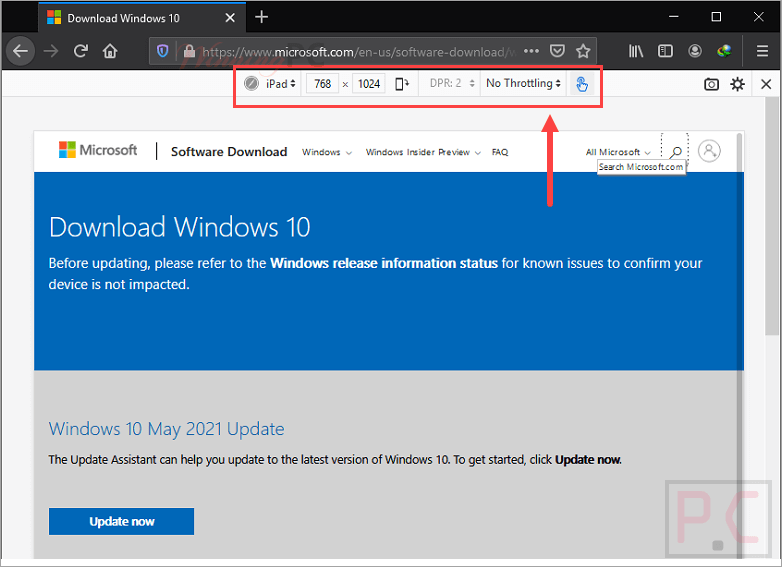
Step 4. Press F5 to reload the web page.
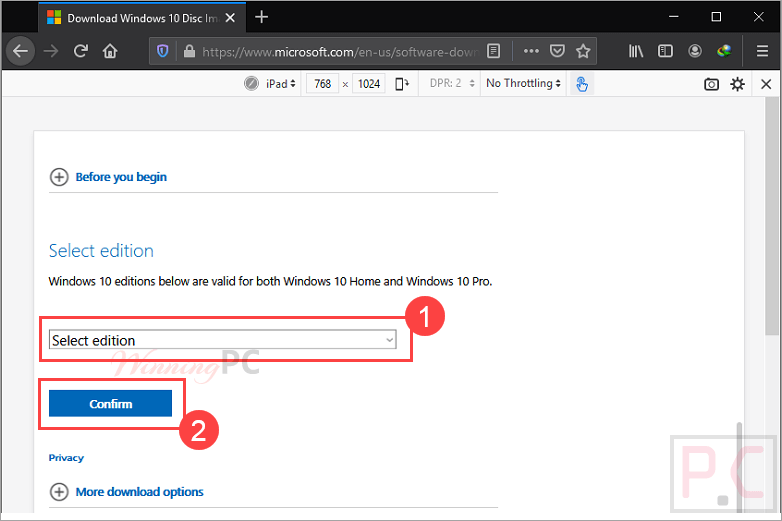
Now choose the Windows 10 Edition that you want to download and select the product language to download Windows 10 iso file to your computer:
Download Windows 10 ISO by Media Creation Tool
Step 1. Go to the “Download Windows 10” page: https://www.microsoft.com/en-us/software-download/windows10
Click on the “Download tool now” to download Media Creation Tool to your computer:

Step 2. Run the exe file and choose “Create installation media for another PC”

Step 3. Choose the Windows 10 version that suitable for your use.

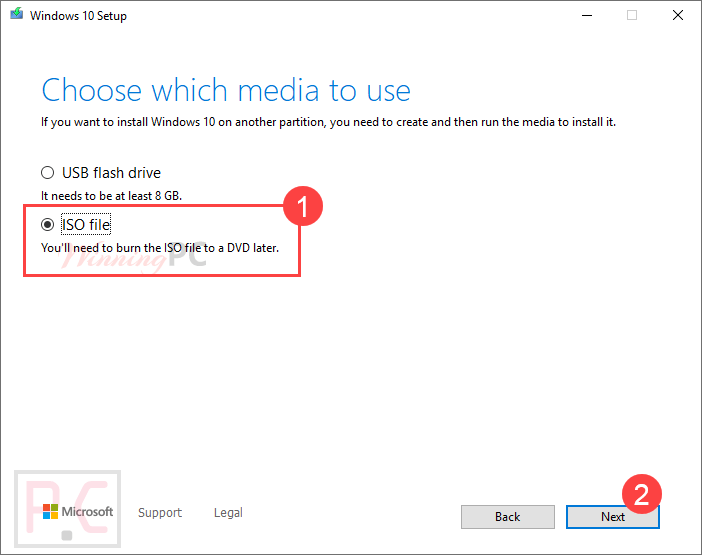
Step 4. Choose the “ISO file” and Media Creation Tool will download and verify the necessary files to create an ISO:
Step 5. Select a location to save your ISO file then take a coffee to waiting for this process: