 Laura Marano

💡 DocuFreezer is up to 20% off: the 5-PC license costs $220 instead of $245, while the 10-PC license costs $390 instead of $490. ✅ Verified Oct 2026 by Laura. The Windows app batch-converts more than 80 document and image formats.
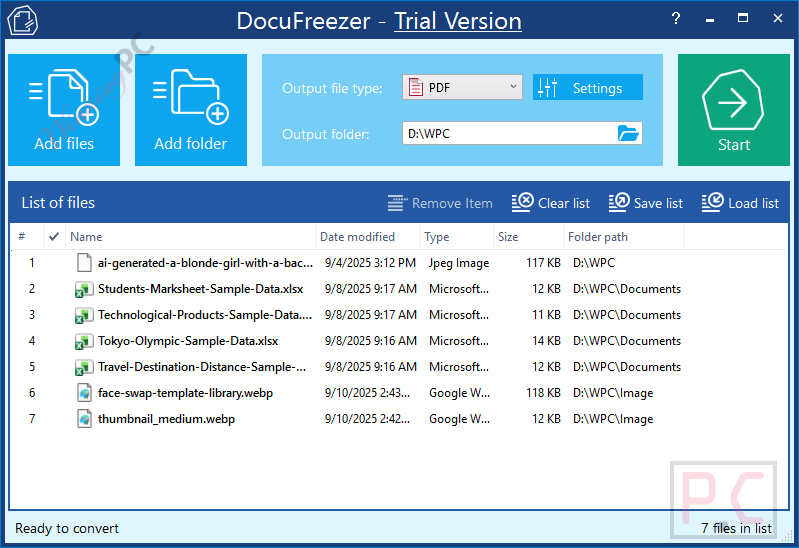
DocuFreezer is a Windows desktop batch converter from fCoder Software for turning documents and images into PDF, JPG, PNG, TIFF, or TXT. This document conversion tool is aimed at users who need consistent, non-editable output across many files, and it supports more than 80 input formats.

Table of Contents
DocuFreezer: In-Depth Review & Features
Key Features:
- Batch-converts more than 80 document and image formats into PDF, TXT, JPG, TIFF, or PNG.
- Accepts individual files, complete folders, and documents stored inside RAR, ZIP, or 7ZIP archives.
- Preserves page structure, formatting, fonts, hyperlinks, metadata, folder structure, attachments, and color attributes where supported.
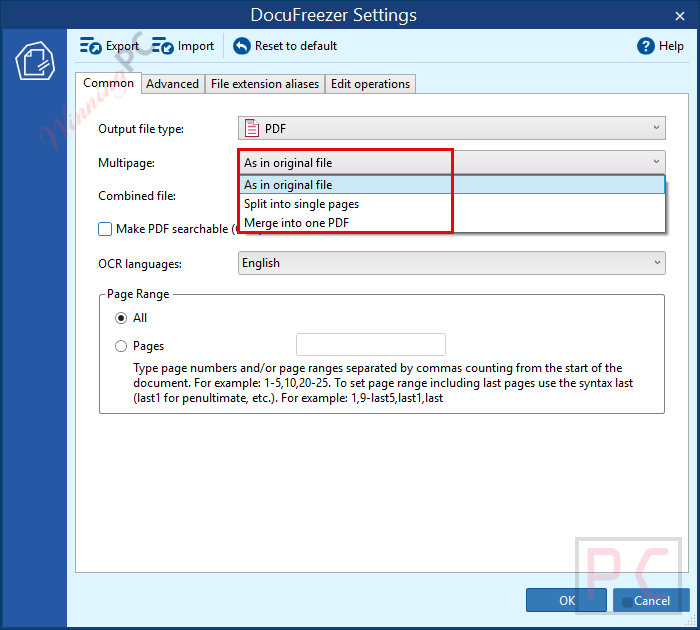
- Merges or splits PDF and TIFF files, adds pages to existing PDFs, and extracts multi-page documents into individual files.
- Provides OCR, text/image/barcode overlays, rotation, cropping, resizing, compression, blank-page removal, annotations, and customizable file naming.
Pros & Cons:
More screenshots

How to Use (Step-by-Step Guide)
Step 1. Download, install and launch DocuFreezer
Step 2. Add Files or Folders
You can add Word documents, PDFs, images, spreadsheets, emails, CAD files, or even ZIP/RAR archives.
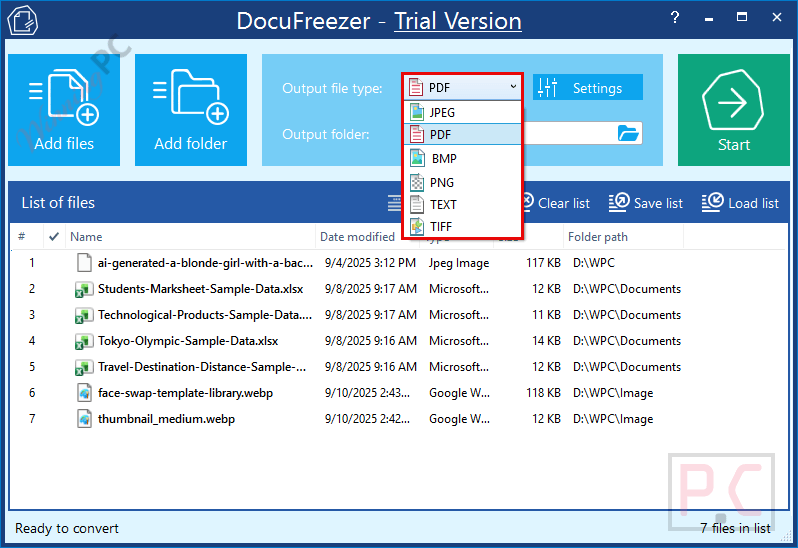
Step 3. Choose the Output Format
Select your desired output: PDF, JPG, PNG, TIFF, TXT, etc., or choose the corresponding option to merge files into one PDF/TIFF file.
Step 4. Customize Additional Settings (Optional)
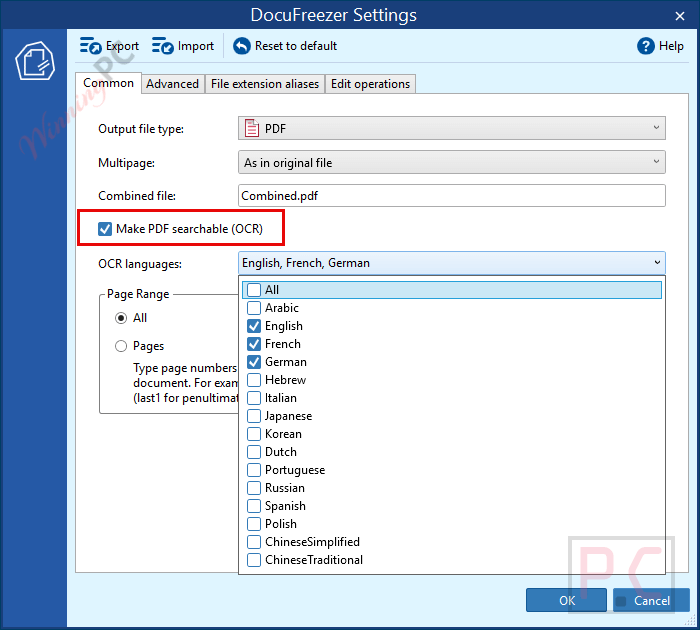
Before converting, you can adjust OCR for scanned files, watermarks or stamps, page rotation or cropping, DPI, quality, or colour mode, and password protection.
Step 5. Choose the Output Folder
Choose the location to save the converted files. You can keep the original folder structure or create a new destination folder.
Step 6. Start the Conversion
Click the “Start” button to begin batch-processing your files and display progress in real time.
Step 7. Review the Output Files
When conversion is complete, open the output folder and check your new PDFs, images, or documents.
Frequently Asked Questions
Does DocuFreezer support OCR?
Yes. The built-in OCR engine can recognize text inside scanned PDFs and images and convert them into searchable PDFs or extract text into TXT files.
Can it convert password-protected files?
DocuFreezer can open protected files using a provided password list and can also apply passwords to output files.
Can I add watermarks or stamps to my converted files?
Yes. DocuFreezer supports text, image, and barcode watermarks, including automatic macros like dates and file names.
Does DocuFreezer support command-line automation?
Yes. You can run silent, scheduled, or automated conversions using command-line parameters.
Can it convert files directly from ZIP or RAR archives?
Yes. DocuFreezer can process files inside ZIP, RAR, and 7z archives without extracting them manually.
What is the current DocuFreezer deal?
The current DocuFreezer deal gives 10% off the 5-PC license and 20% off the 10-PC license, with no coupon code required. The listed prices are $220 instead of $245 for five PCs and $390 instead of $490 for ten PCs; the single-PC license remains $49.
System Requirements & Details
| Language Support | English, Français, Italian, Spanish, Swedish, and more… |
| Money Back Guarantee | 30-Day |
| Operating System | Windows 11 / 10 / 8.1 (32-bit or 64-bit system) Microsoft Windows Server 2008 / 2012 / 2016 / 2019 or newer versions |
| Shipping | Register code will be sent to your email in minutes |
| Subscription | Lifetime |
| Support Services | Tickets |