 Laura Marano
💡 fCoder 2PDF is 34% off for the 5-PC license—$495 instead of $745. The discount applies through the offer link and is verified Oct 2026 by Laura. The single commercial license remains $149. 2PDF runs on Windows and converts documents and images to PDF from the command line.
fCoder 2PDF is a Windows command-line utility for developers, system administrators, and integrators who need to batch-convert documents and images to PDF. It supports more than 275 file types and can be used on desktop computers, servers, or as part of another software application.
fCoder 2PDF - Commercial License
One license for 1 PC | 30-day return policy
Table of Contents
Key Features and Screenshots
Key Features:
- Command-Line PDF Conversion: Convert documents and images to PDF directly from the Windows Command Prompt using simple, well-documented commands.
- Wide File Format Compatibility: Convert DOC, DOCX, XLS, XLSX, PPT, PPTX, TXT, RTF, HTML, XPS, PS, EPS, Visio, Publisher, PDF Portfolio, and more into PDF.
- Image to PDF Conversion: Supports common and professional image formats such as JPEG, PNG, TIFF, PSD, RAW camera files, HEIC, and CorelDraw images.
- PDF Merge and Split: Combine multiple files into one PDF or split multi-page PDFs into separate documents or individual pages.
- Watermarking Options: Add text or image watermarks to PDF files to protect content or include extra information.
- Page Rotation and Auto-Rotation: Rotate pages to a fixed angle or enable automatic rotation for portrait or landscape output.
- Searchable PDF Creation (OCR): Convert scanned documents and images into searchable PDFs using OCR, with support for English and multiple European languages.
- Scheduled Processing: Automate conversions with Windows Task Scheduler using time-based or event-based triggers.
- Batch Processing Support: Process hundreds or thousands of files in a single session, making it suitable for large-scale or repetitive conversion tasks.
- Page Extraction: Extract specific pages or page ranges from existing PDF files for flexible document handling.
- Custom Output Settings: Define output file names, templates, page ranges, background colors, rotation direction, and compression options.
- File Size Reduction: Apply compression to reduce PDF file size while maintaining readable quality.
- Automation via Scripts: Run conversions using BAT, CMD, PowerShell, or VBScript without user interaction.
- Security & File Protection: Set passwords for output PDF files in bulk and unlock password-protected PDFs (support for multiple input passwords).
- Add QR codes or barcodes: Add barcodes or QR codes to a PDF with full control over type, size, position, and content.
Pros & Cons:
How to Use (Step-by-Step Guide)
Step 1. Install 2PDF on Windows
Download and install fCoder 2PDF on your PC or Windows Server. After installation, note the folder path where 2pdf.exe is located.
Step 2. Open Command Prompt (or PowerShell)
Press Win + R -> type cmd -> press Enter.
Step 3. Convert a single file to PDF
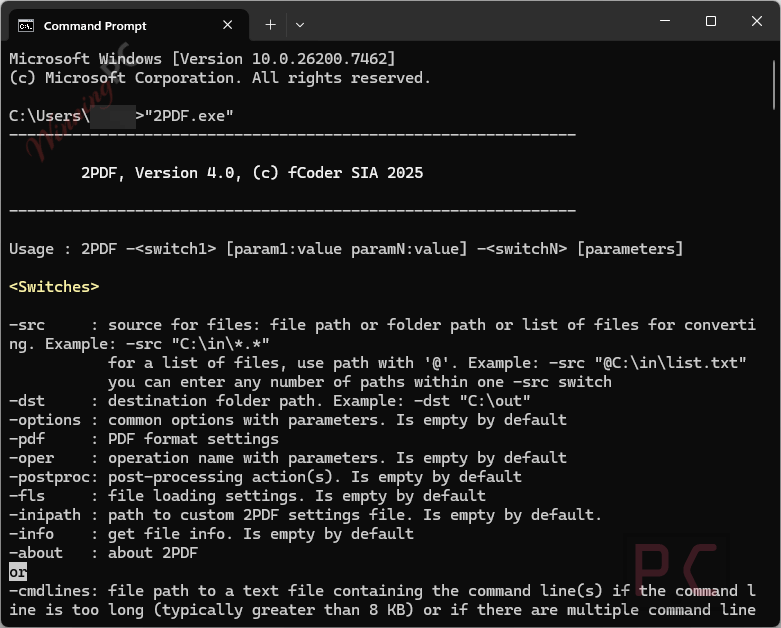
Enter the command line “2PDF.exe” to view all switches and parameters of the program.
Step 4. Batch convert multiple files
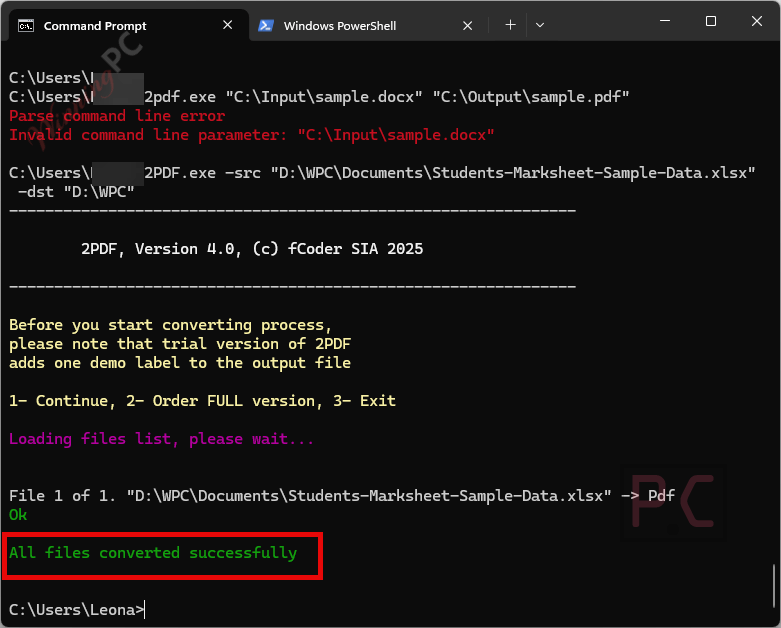
For batch conversion, run a command with the switches -src (source) and -dst (destination) specified.
For example: 2PDF.exe -src “C:\In*.*” -dst “C:\Out”
Step 5: Merge files into one PDF (when needed)
Use the merge option/parameters to combine multiple documents into a single PDF.
For example: 2PDF.exe -src “C:\In*.*” -dst “C:\Out” -pdf multipage:append combine:”my multipage.pdf”
Step 6. Split a PDF or extract pages
Use the page range/extract options to split a multi-page PDF into separate PDFs or export selected pages into a new file.
For example: 2PDF.exe -src “C:\In\*.*” -dst “C:\Out” -pdf multipage:split split_step:3
For more examples, please refer to the 2PDF Command Line Syntax and Examples webpage at:
https://www.cmd2pdf.com/features/syntax
Frequently Asked Questions
What is the current fCoder 2PDF discount?
The current listed discount is 34% on the 5-PC license, reducing the price from $745 to $495. The single commercial license remains at its regular $149 price.
Is page rotation supported?
Yes. You can rotate pages manually or enable auto-rotation to ensure correct portrait or landscape orientation.
Can I automate conversions on a schedule?
Yes. 2PDF works well with Windows Task Scheduler and can also be triggered by scripts such as BAT, CMD, PowerShell, or VBScript.
Can I reduce PDF file size during conversion?
Yes. Compression options are available to help reduce output file size while keeping acceptable quality.
Does it handle large or high-resolution files well?
Yes. The processing engine is built to handle large documents and high-resolution images efficiently.
What file formats does fCoder 2PDF support?
fCoder 2PDF supports more than 275 file types, including DOC, DOCX, XLS, XLSX, PPT, PPTX, PDF, XPS, HTML, TXT, RTF, TIFF, JPG, PNG, PSD, CDR, RAW, and HEIC. The exact behavior can vary by source format, so test critical file types before a large migration.
System Requirements & Details
| Language Support | English, Français, Italian, Spanish, Swedish, and more… |
| Money Back Guarantee | 30-Day |
| Operating System | Windows Vista, Windows 7, Windows 8/8.1, Windows 10/11 |
| Shipping | Register code will be sent to your email in minutes |
| Subscription | Lifetime |
| Support Services | Tickets |